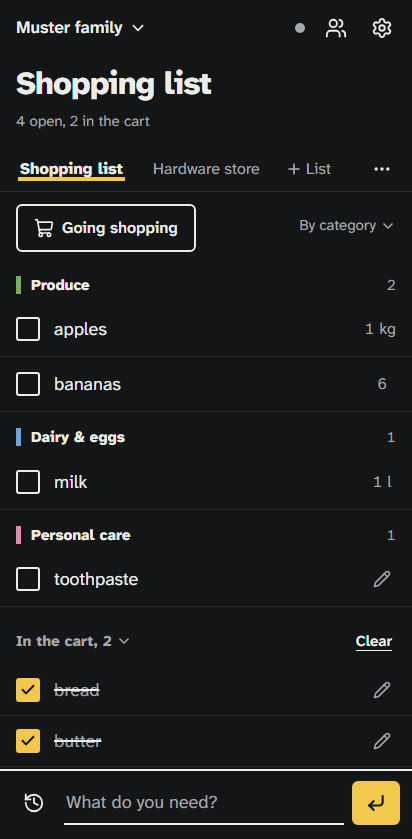
Brauchma is free, made in Austria, has no ads, no sponsored products and no tracking, never sells your data and works offline: add what's missing at home and check it off in the store, even without reception, in your phone's browser or from your home screen.
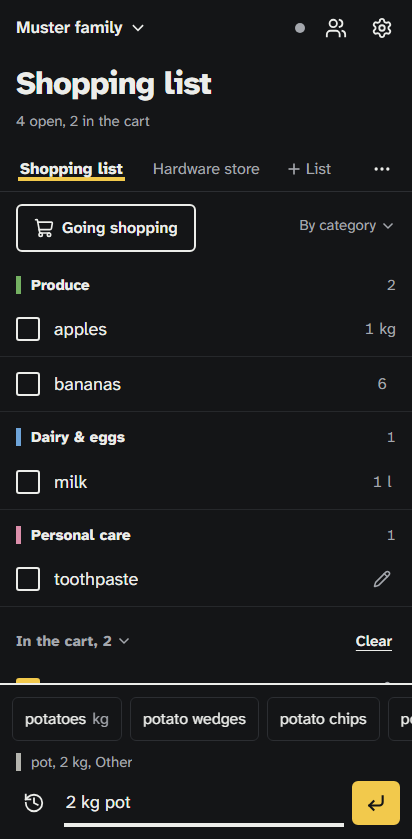
Type "2 kg potatoes" and Brauchma adds potatoes, 2 kg, under Produce. The list is sorted by category, suggestions come from what your family has bought before, and "Bought before" shows your family's regulars, each one tap away from the list.
Sorted like your supermarket
Put a list's categories into the order of your store once. If you like, Brauchma learns the order while you shop.
Works in the basement
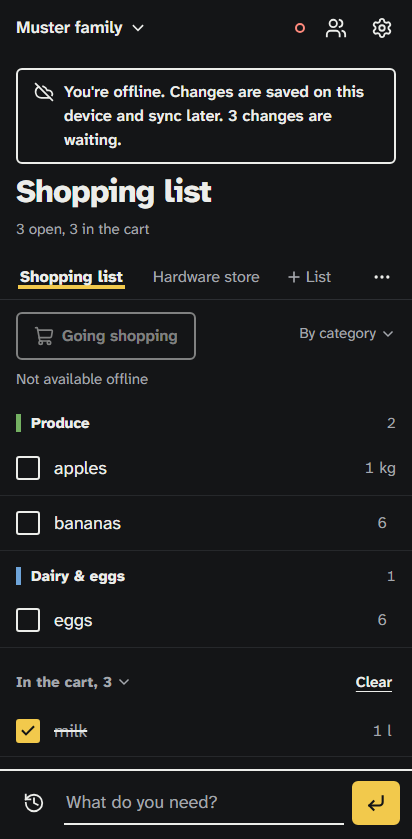
No reception in the store? Check items off anyway. Your changes stay on the phone, a banner shows how many are waiting, and they sync when you're back online.
Shared lists for the whole family
Keep up to five lists, say for the supermarket, the drugstore and the hardware store, and share them all with your family. Send an invitation link through any messenger. The others sign in with their Google account: no password, no registration form. Changes show up on everyone's phone right away. Tell the family you're going shopping, and they can add what's missing in time.
No app store, no tracking
Install Brauchma straight from the browser. It has no analytics and runs on a server in the EU. Brauchma is free for everyone and runs on voluntary support from the families who use it.
Install on Android
Open Brauchma in Chrome and sign in with Google. Use Chrome: Samsung Internet cannot install Brauchma yet. Notifications work in Chrome with or without installing.
Go to Settings and tap "Install app", or open Chrome's menu and choose "Install app" or "Add to Home screen".
Confirm with "Install". Brauchma now opens from your home screen like an app.
Install on iPhone
Open Brauchma in Safari and sign in with Google. Use Safari: these steps are for Safari, and on the home screen Brauchma opens as its own app. Notifications also need the app on the home screen, and iOS 16.4 or later.
Tap the Share button in Safari. In newer Safari versions it can sit behind the "⋯" button.
Scroll down, choose "Add to Home Screen" and tap "Add". The app may ask you to sign in once more.