Brauchma gives each family shared shopping lists: one to start with, and up to five. The name comes from the dialect of the Waldviertel in Austria: "Brauch ma no wos?" ("Do we need anything else?") is the question a household asks before shopping, and Brauchma is pronounced BRAUCH-ma. Everyone in the family sees the same items, adds what's missing and checks off what's in the cart. This page walks through it from the first sign-in.
Signing in
Open Brauchma and tap "Continue with Google". There is no password and no registration form: your Google account is your Brauchma account. Brauchma receives your name, email address and the link to your profile picture from Google.
On your first sign-in Brauchma creates a family for you, named after your first name, with an empty list, so you can start right away. If you came through an invitation, Brauchma skips that and shows you the family you were invited to instead.
You stay signed in on that device for 180 days, and every day you use Brauchma extends that time, up to one year after you signed in; then Brauchma asks you to sign in again. To sign out, go to Settings. Settings also lists the devices you are signed in on, and you can sign out each one there. "Sign out everywhere else" ends your sessions on all other devices, for example on a lost phone.
Brauchma is open to everyone: you sign in with your Google account, and that is all it takes. An invitation stays valid until your first sign-in, so the family is waiting for you.
Adding items
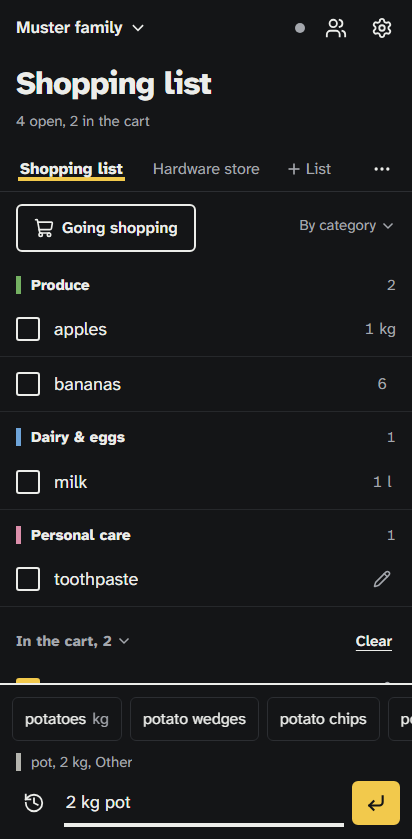
Type into the add bar at the bottom ("What do you need?") and press Enter. The keyboard stays open for the next item. Write items the way you'd say them, in English or German:
- "2 kg potatoes" or "potatoes 2kg" becomes potatoes, 2 kg
- "1.5 l milk" or "1,5 l Milch" becomes milk, 1.5 l
- "2x milk" or "3 apples" sets just the quantity
- "6 pcs eggs" or "6 Stk Eier" uses pieces as the unit
- "toothpaste" is just a name, without quantity
The units are kg, g, l, ml, pieces, pack, bunch, can and bottle, in both languages. While you type, a preview shows how Brauchma will add the item.
Brauchma puts each item into a category, such as Produce, Bakery or Dairy & eggs, using a built-in catalog of common groceries. Your family's choices win: if you move an item to another category or give it a unit, Brauchma remembers that for the next time. The list is grouped by category, at first in the order you'd walk through a typical store. You can sort a list by time added instead; each list keeps its own choice.
While you type, a row of suggestions shows up to eight matches from what your family has bought before and from the catalog. Tapping a suggestion fills in the unit and quantity your family used last time. Suggestions that are already on the list are marked, so you don't add them twice by accident.
Bought before
For the weekly shop, open "Bought before" with the button next to the add bar, or from an empty list. It shows your family's most-used items, up to 30, grouped by category, each with the amount from last time. One tap adds an item with that amount to the list you have open. Items already on that list are marked and can't be added twice. Without reception the sheet works from what your phone has kept from earlier, which can be fewer items.
Checking off, editing, deleting
Tap an item when it's in your cart. It moves to "In the cart" at the bottom. Tap it again to move it back. When you're done, "Clear" in the cart header removes everything in the cart.
To change an item, long-press it or use its edit button. You can change the name, quantity, unit, category and a note, for example "the organic one". On a touch screen, swipe an item to the left to delete it. Deleting and clearing the cart both show an "Undo" button for a few seconds.
Changes reach everyone else in the family right away, without a reload.
More than one list
A family starts with one list, and you can add more, up to five, for example one for the drugstore, one for the hardware store and one for the holidays. Extra lists are free, like everything in Brauchma. Each list has its own items and its own sort order.
Above the items, your family's lists sit side by side in a row: tap one to switch to it, or "+" to create a new one. Each phone remembers which list you had open last, so someone else can stay on the groceries while you look at the drugstore list.
Any member can create and rename lists. Only the owner can delete a list. Brauchma asks first and says how many items go with it, because deleting removes the list and its items for everyone and cannot be undone. The last list of a family cannot be deleted. Creating, renaming and deleting lists need a connection.
Sorted like your store
Each list has its own order of the 13 categories, at first that of a typical store. To make the list follow your way through your store, open "Category order" in the list's menu and move the categories by dragging them or with the up and down buttons. "Default order" brings back the order of a typical store. The order applies to the whole family, and a change reaches everyone right away. The groups on the list follow it while the list is sorted by category.
Brauchma can also learn the order while you shop. This is optional and set for each list on its own: the switch "Learn the order while shopping" in the same menu is off until someone in the family turns it on. While it is on, Brauchma notes in each shopping round the order in which you check off the first item in each category. A shopping round is everything checked off on the list without a break of more than 45 minutes. From three shopping rounds on, Brauchma adjusts the list's order to match, and the menu shows when it last did. If you move the categories yourself, learning starts over. If you turn learning off, the order stays as it is. What Brauchma stores for this is in the privacy policy.
How to combine the two and where the sorting reaches its limits is in A shopping list sorted by aisle.
Families and invitations
A family has one owner and up to 20 members in all. The owner can rename the family, remove members, make someone else the owner and delete the family. Members can do everything else, including inviting people. You can belong to up to ten families and switch between them in the header.
To invite someone, open the family page from the menu. There are two ways:
- By link. Tap "Create link", then "Share" to send it through any messenger, or "Copy". A link works once and for 7 days. Switch on "Family link" before you create it, and the same link lets up to 10 people join within 7 days; the family page shows how many have used it.
- By address. Enter the person's email address. The invitation shows up in Brauchma as soon as that person signs in with this address. It stays valid for 30 days. Brauchma sends no email unless the operator has set up email, so tell the person yourself.
The person you invite needs nothing but a Google account: they open the link, sign in, and tap "Join". Open invitations are listed on the family page, and any member can revoke them. Brauchma shows a link only once, when you create it; to send it again, create a new link. Links you already sent keep working. A family can have up to 20 open invitations at a time.
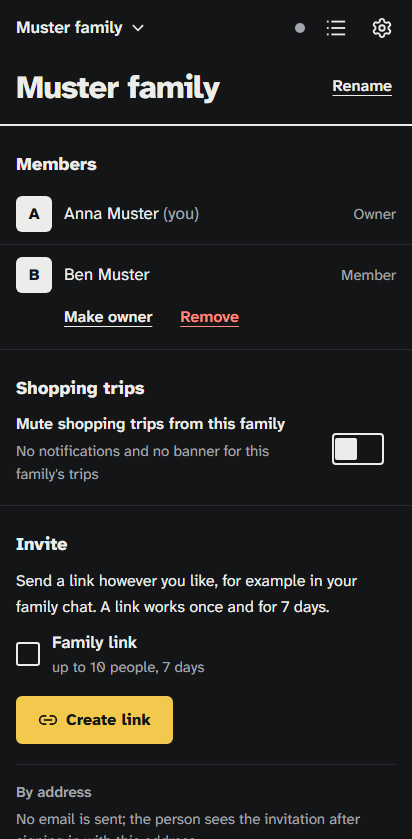
To leave a family, open its page and tap "Leave family". The owner makes someone else the owner first. If you're the last member, leaving deletes the family and its lists.
Going shopping
Before you head to the store, tap "Going shopping" above the list and choose now, in 15 or in 30 minutes. The others in the family see a banner in the app right away, and those who turned notifications on get one on their phone, so they can add what's missing in time. You see how many items were added since you announced. The count covers all of the family's lists. Tap "Done" when you're back; otherwise the trip ends on its own 30 minutes after the time you announced.
To keep it calm, each member can announce one trip every 90 minutes, and a family at most four a day.
Notifications are off until you turn them on in Settings, under Notifications. There you set quiet hours (22:00 to 07:00 unless you change them) and see your devices. On a family's page you can mute that family's trips. Notifications never contain item names.
Without reception
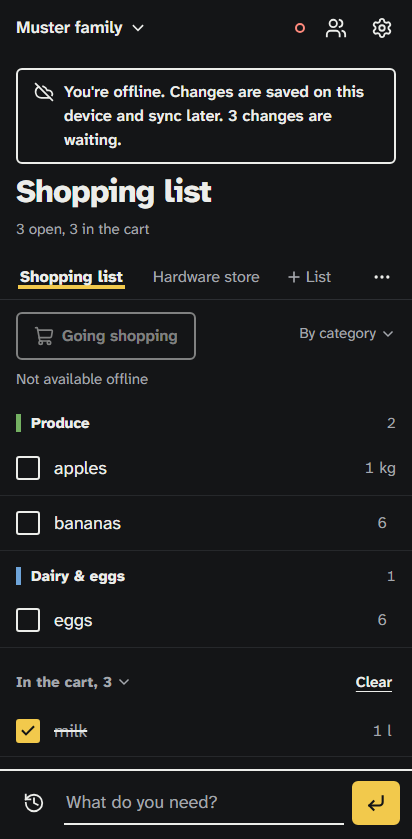
Brauchma keeps your lists on your phone. With no connection, the app still opens and shows the last known state, also after a restart of the phone. You can add, edit, check off, delete and clear items as usual. A banner says that you're offline and counts the changes waiting to sync, and a dot in the header shows the connection state.
When the connection returns, Brauchma sends the waiting changes in order and shows "Back online, syncing" until it's done. If two people changed the same item, the last change wins for each field. If someone deleted an item while you edited it offline, your edit is dropped quietly.
Things that need the server, such as invitations, creating, renaming or deleting lists, family changes and the language setting, are disabled while you're offline, with a short note. If you sign out while changes are still waiting, Brauchma tells you how many will be lost and asks first.
The tour
On your first visit a short tour of five steps shows the list, the add bar, checking off, swiping to delete and the family menu. "Skip" ends it at any time. You can run it again from Settings with "Show tutorial".
Languages and themes
Brauchma speaks English and German. It picks the language of your browser, and you can change it in Settings, also on the sign-in page. The theme follows your phone's light or dark mode, or you choose Light or Dark in Settings. Both choices are saved with your account and follow you to other devices.
Installing
Brauchma is a web app: it runs in the browser and needs no app store. Installed on your home screen, it opens without the browser bar and works offline. On Android, use Chrome: go to Settings and tap "Install app". Samsung Internet cannot install Brauchma yet. On an iPhone, use Safari: tap Share, then "Add to Home Screen". Notifications on an iPhone need the installed app and iOS 16.4 or later; on Android they work in Chrome with or without installing. The home page has the steps. On an iPhone the installed app keeps its storage apart from Safari, so it may ask you to sign in once more.

Deleting your account
Go to Settings and tap "Delete my account". Brauchma first shows what will happen, then asks you to confirm once more. If you signed in more than 30 minutes ago, Brauchma asks you to sign in with Google again first. Deleting your account:
- signs you out on all devices,
- removes you from all your families and withdraws your open invitations,
- passes the families you own to the member who has been there the longest,
- deletes families where you're the only member, together with their lists.
Items you added to a family that continues stay on its lists for the others. The privacy policy lists exactly what is deleted and what is kept.